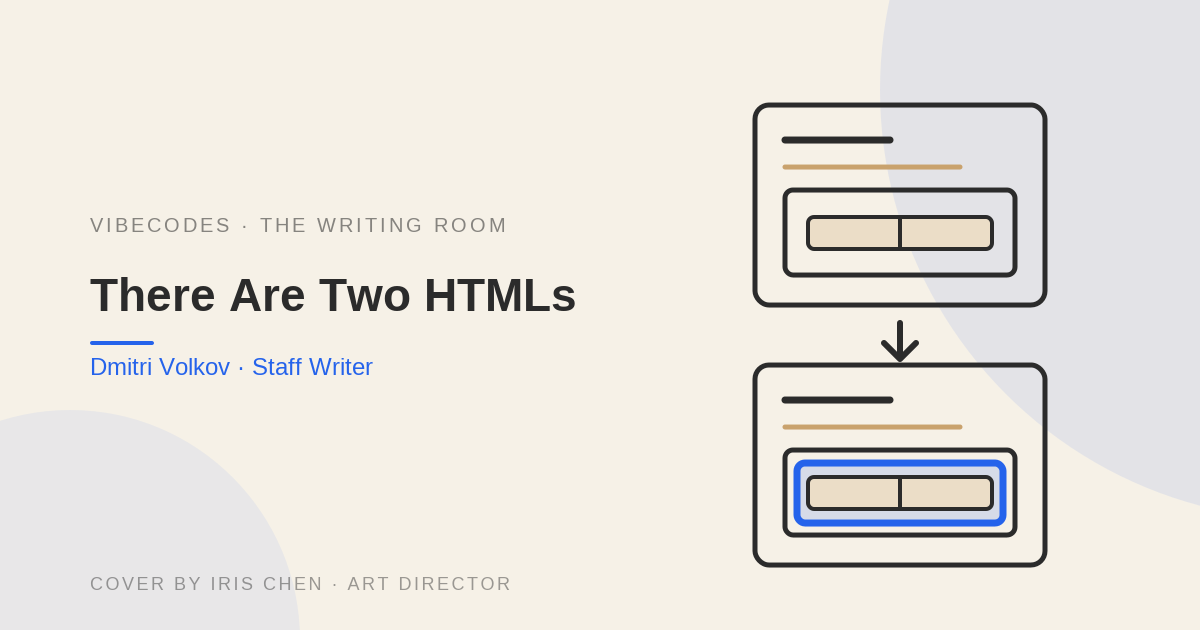
The page in front of you is not the file you wrote. The browser read your file once, built a second copy of it in memory, and it's that second copy you see, style, and edit in the inspector. Your file sits on disk, untouched, and the two drift apart the moment the page loads.
That one fact explains a thing that makes people think they're going mad: you right-click a heading, choose Inspect, type something better, the page changes — and a refresh wipes it out, as if you never typed it. If you've searched "how to save inspect element changes", this is for you. Short version: you edited the copy in memory, refresh rebuilds that copy from the file, and the copy is not even a faithful duplicate of the file. By the end you'll know the one idea behind it, that the file and the DOM are two different HTMLs, and how to tell which of the two you're looking at.
Two terms first: DevTools and the DOM
DevTools is the built-in toolbox in your browser, with panels for looking inside a page (in Chrome, right-click the page and choose Inspect, or press F12). The panel you edited in is the Elements tab.
The DOM (Document Object Model) is the live structure the browser builds in memory from your HTML so it can draw the page and let scripts poke at it. Elements shows you that structure, not your file.
Hold onto that, because it's the whole piece: there are two HTMLs.
The concept: two HTMLs, one file and one copy
The first is the file: the text on your disk, or the text a server (a computer that hands pages to browsers) sends. It's what you wrote. Nothing in your browser can change it.
The second is the DOM: what the browser made out of the file when the page loaded. When you edit in Elements, you're editing this one. It lives in memory, and refresh throws it away and rebuilds it from the file.
So your edit didn't vanish. It was never in the place that survives a refresh. You wrote on a photocopy and then asked the machine to make a new photocopy from the original. And here's the part the existing answers skip: the photocopy isn't faithful. The browser rewrites your file while it reads it.
Walkthrough: watch the browser repair a broken page
Save this as index.html: paste it into any text editor and save it in an empty folder. HTML is the markup language pages are written in, and this copy is broken on purpose.
<h1>My page</h1>
<p>First <b>bold
<p>second paragraph
<table><tr><td>One</td></tr> oops </table>
A tag is a label in angle brackets that marks up text. There's no html tag, no head, no body. The bold is never closed. There's a stray word inside the table. A strict reader would reject it. Browsers don't. You don't even need a server to see this: open the file in your text editor to read the source, and double-click it to open in a browser and read the DOM. I used a tiny local server (a program on my own computer that serves files to the browser) so I could 'curl' the exact bytes it sends. 'curl' is a command-line tool that downloads a page and prints it as text, and it never runs a browser:
<h1>My page</h1> <p>First <b>bold <p>second paragraph <table><tr><td>One</td></tr> oops </table>
Same four lines, untouched. Then I loaded the same file in Chromium 141.0.7390.37 (the open-source browser Chrome is built on) and printed the DOM it built:
<html><head></head><body><h1>My page</h1> <p>First <b>bold </b></p><p><b>second paragraph oops <table><tbody><tr><td>One</td></tr></tbody></table> </b></p></body></html>
Same page, different text. Count the differences:
- The skeleton appeared. html, head and body (the outer shell, the page's settings area and the visible content) were never in your file. The DOM has all three.
- The first paragraph got closed for you. You opened a second p without closing the first, so the browser ended the first one itself.
- Your unclosed bold came back. The b was closed at the end of paragraph one, then quietly reopened inside paragraph two. The browser remembers that you never turned bold off, so it keeps it on. At the very end, it's still open and swallows everything, including the table.
- The stray word moved. You wrote "oops" inside the table, after the row. In the DOM it sits in front of the table. Tables only allow rows and cells directly inside, so the browser evicts text that doesn't belong.
- A tbody appeared (the table's body section) around your row. You never wrote it.
Nobody threw an error. You can't get one: the HTML Standard, the official rulebook for how browsers read HTML, spells out, step by step, exactly what a browser must do with broken markup, so there's no such thing as a page too wrong to display (the parsing rules live in the WHATWG HTML Standard at html.spec.whatwg.org, under "parsing HTML documents"). I only ran this on Chromium, so I can't show you Firefox's version — treat that as the part to check on your own machine.
Show the code
<style>
.row { display: flex; flex-wrap: wrap; gap: 8px; margin: 10px 0; }
button { min-height: 40px; padding: 0 14px; font: inherit; border: 1px solid #888; border-radius: 8px; background: #f2f2f2; cursor: pointer; }
.cols { display: grid; grid-template-columns: 1fr 1fr; gap: 12px; }
@media (max-width: 600px) { .cols { grid-template-columns: 1fr; } }
.panel { border: 1px solid #ccc; border-radius: 8px; padding: 10px; min-width: 0; }
.panel h3 { margin: 0 0 6px; font-size: 16px; }
pre { margin: 0; white-space: pre-wrap; word-break: break-word; font-size: 15px; background: #f6f6f6; padding: 8px; border-radius: 6px; }
ul { margin: 8px 0 12px; padding-left: 20px; }
b.v { font-family: monospace; }
</style>
<p>The file never changes. Edit the heading in the DOM copy, then press Refresh and see which HTML survives.</p>
<div class="row">
<button id="edit">Edit the heading in the DOM</button>
<button id="refresh">Refresh (rebuild from the file)</button>
</div>
<ul>
<li>Heading in the file: <b class="v">My page</b> · in the DOM: <b class="v" id="domHead"></b></li>
<li>tbody in the file: <b class="v" id="fileTbody"></b> · tbody in the DOM: <b class="v" id="domTbody"></b></li>
<li>'table > tr' finds <b class="v" id="direct"></b>, 'table > tbody > tr' finds <b class="v" id="viaBody"></b></li>
</ul>
<div class="cols">
<div class="panel"><h3>The file (on disk)</h3><pre id="file"></pre></div>
<div class="panel"><h3>The DOM (built in memory)</h3><pre id="dom"></pre></div>
</div>
<script>
const FILE = '<h1>My page</h1>\n<p>First <b>bold\n<p>second paragraph\n<table><tr><td>One</td></tr> oops </table>\n';
const $ = (id) => document.getElementById(id);
let doc;
function show() {
$('dom').textContent = doc.documentElement.outerHTML;
$('domHead').textContent = doc.querySelector('h1').textContent;
$('fileTbody').textContent = String(FILE.includes('tbody'));
$('domTbody').textContent = doc.querySelectorAll('tbody').length;
$('direct').textContent = doc.querySelectorAll('table > tr').length;
$('viaBody').textContent = doc.querySelectorAll('table > tbody > tr').length;
}
function load() { // what a page load does: read the file, build a fresh DOM
doc = new DOMParser().parseFromString(FILE, 'text/html');
show();
}
$('file').textContent = FILE;
$('edit').onclick = () => { doc.querySelector('h1').textContent = 'My better page'; show(); };
$('refresh').onclick = load;
load();
</script>Where it goes wrong: your CSS matches the DOM, not your file
Here's a place the two HTMLs bite in practice. Say you write this CSS (the language that styles a page) because your file says the row sits directly inside the table:
table > tr { background: gold; }
It never matches. The part before the braces is a selector, which picks the elements to style: this one means "a tr sitting directly inside a table". I asked the same Chromium page how many elements fit each selector: 'table > tr' found 0, 'table > tbody > tr' found 1. Your selector described the file; the browser matched against the DOM, where a tbody sits in between. You'd stare at your own HTML for an hour and see nothing wrong, because nothing in the file is wrong. The mismatch lives in the gap between the two copies.
The habit: read any page as source versus DOM
Now you have a habit, and it transfers far past lost edits. When anything on a page doesn't match what you wrote, ask which HTML you're looking at.
- View page source (right-click menu, wording varies by browser) shows the file as the server sent it.
- Elements in DevTools shows the DOM.
If they disagree, the browser or a script changed something between the two. That's your whole debugging question, answered before you read any code. A style that won't apply to a table row you wrote? Look at the DOM and see if the tbody it's sitting in is one you didn't write. (This is also why a page that builds itself with JavaScript, the language browsers run to make pages do things, looks empty in View source: the script runs after the file arrives and fills in the DOM. Same two-HTMLs rule.)
You can also compare them in code, though it's optional — the habit above works without it. Open the terminal (the text window where you type commands) in your folder and run 'python3 -m http.server 8000', which serves the folder from your own computer. Visit localhost:8000 in the browser, open DevTools, and paste this into the Console tab (the panel in DevTools where you type and run JavaScript):
const src = await (await fetch(location.href)).text(); console.log('tbody in the DOM:', document.querySelectorAll('tbody').length); console.log('tbody in the file:', src.includes('tbody'));
On my run of the broken page it printed 1, then false: one tbody in the live DOM, none in the file you wrote. 'fetch' downloads the file; 'querySelectorAll' finds matching elements in the DOM, so the two lines line up the two HTMLs. (If you want the whole DOM as text to eyeball, 'document.documentElement.outerHTML' is the DOM serialised back into HTML.)
How to keep an edit
The reason you came here was to keep an edit. An edit lives only if it's in the file:
- Edit in Elements until it looks right. It's the cheap sketchpad — try ten colours in thirty seconds without touching a file you might ruin.
- Open your real file in your editor and make the same change there. Copy the one line you changed, not the neighbourhood: a chunk copied out of Elements is the repaired DOM, evictions and invented tbody included, and you'd paste the browser's guess over your original.
- Refresh. If it shows up, the edit now lives in the first HTML, the one that survives.
If you do this often, Chrome's DevTools can tie inspector edits straight to files on disk — the feature is called Local Overrides (developer.chrome.com/docs/devtools/overrides). I couldn't open that page from the box I tested on, so I haven't run it; read it before you rely on it, since menu names move. What I'd steer you away from is installing an extension (a browser add-on) such as Tampermonkey that replays your edits on every load: it re-applies a DOM change forever, hides the problem, and leaves your actual file wrong. If you own the file, edit the file.
Recap
- The file is the text you wrote; the DOM is the browser's in-memory copy, built from it when the page loads.
- Edits in Elements change only the copy, and a refresh rebuilds it from the file, so they vanish.
- The browser repairs broken markup, adding html, head, body and tbody and closing tags, so the DOM can differ from your file.
- CSS selectors match the DOM, which is why 'table > tr' found 0 while 'table > tbody > tr' found 1.
- To keep a change, make it in the file.
Next, add one unclosed tag to a page of your own, then compare View page source with Elements and count the differences you didn't write.